 Drive Clean
Find the extra copy
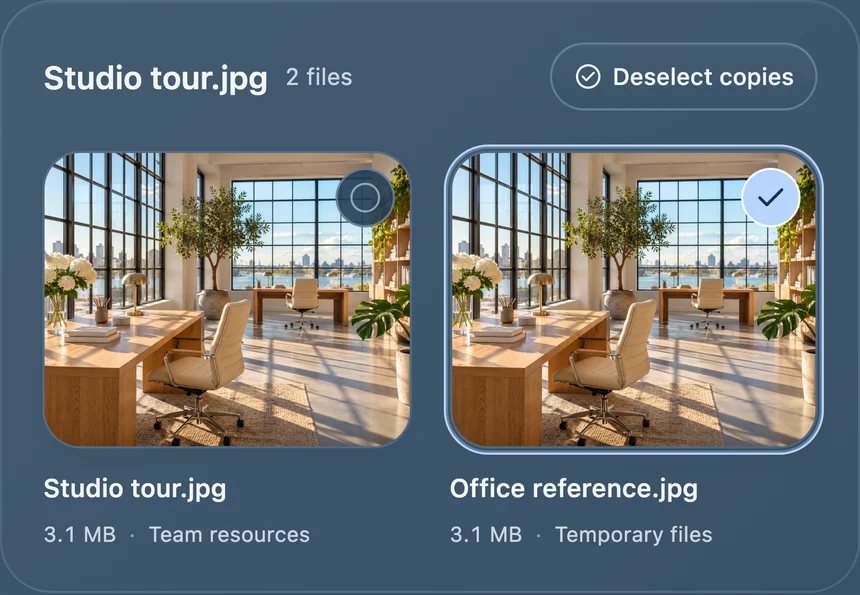
See identical uploads side by side, even when their names differ. Compare sizes and folders before selecting a copy.
Google Drive cleanup for Mac
Find large files and exact duplicates in Google Drive. Compare copies, choose what to keep, and move the rest to Trash.
Explore the features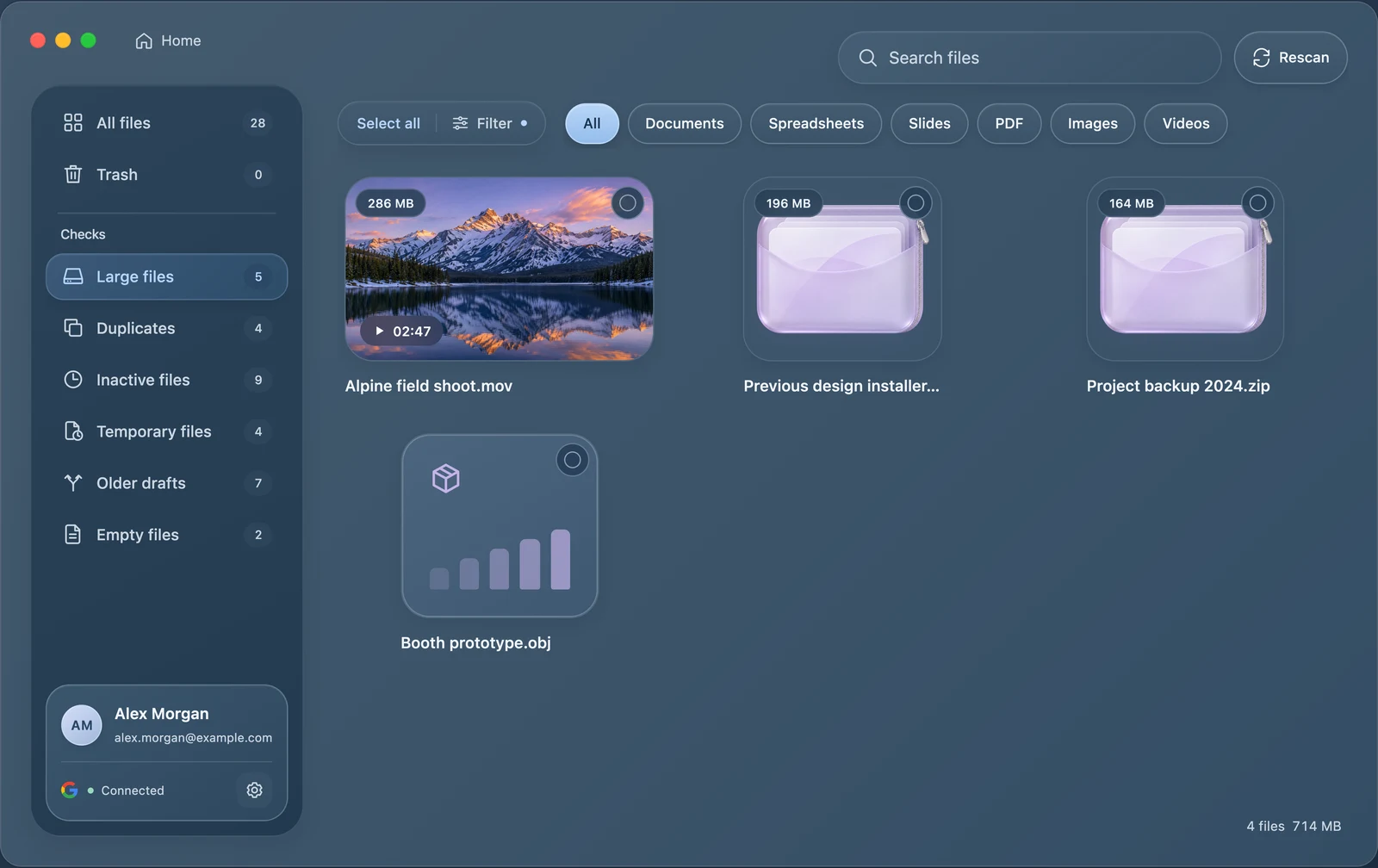
See identical uploads side by side, even when their names differ. Compare sizes and folders before selecting a copy.
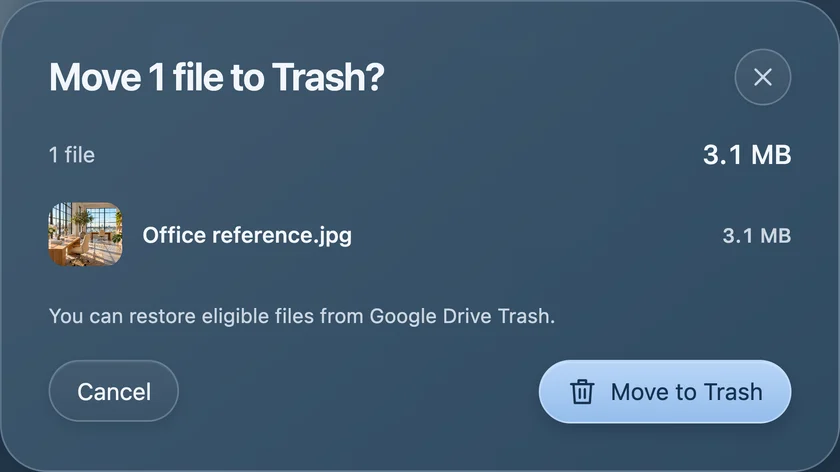
Check the files you’ve selected before moving them to Google Drive Trash. Restore eligible items while they’re still there.
Pick a cutoff to find files you haven’t opened in a while.
Review older files with temporary names or folder locations.
Check older files flagged as possible drafts before removing them.
Locate uploaded files with a reported size of zero bytes.
Drive Clean connects directly to Google Drive. Scan results and activity stay in memory during your session, and your Mac’s Keychain stores the sign-in information needed to reconnect.
Read our Privacy Policy